# Groups and departments
> **What you will learn**
> What each of groups and departments **groups**, how to layer them, and why
> per-person permission management collapses.
> **The names are confusing. Start here.**
> A **thread group** groups **conversations.** Not people.
> A **department** groups **people.**
> So you **layer them**, as in "only Sales can see this thread group."
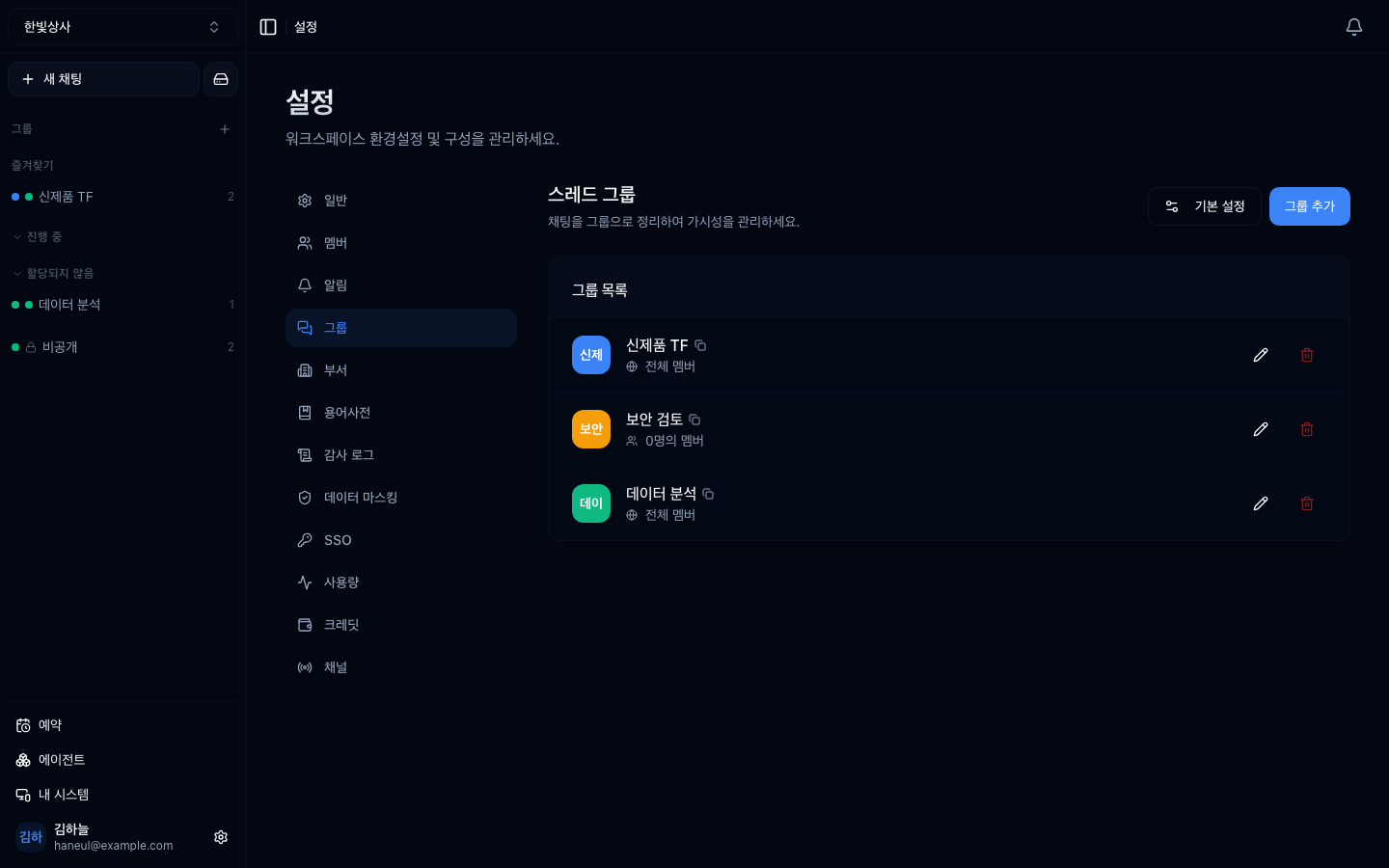
Each group can carry a **colour**, which is what distinguishes them at a glance
in the sidebar. Note that the screen describes it as organising **chats** into
groups — chats, not people.
## Per-person management collapses
With five members, configuring each person is fine. At thirty it becomes this:
```
"Why can't Kim use this tool?"
"Hmm... no idea who changed it or when"
```
You reach **the point where nobody can describe the current state.** That is why
you need groupings.
## Two groupings — they group different things
```mermaid
graph TD
W["Workspace"] --> D["Department
groups people"]
W --> G["Thread group
groups conversations"]
D --> M["member · member · member"]
G --> T["thread · thread · thread"]
D -.->|"only this department can see it"| G
```
| | Department | Thread group |
|---|---|---|
| **What it groups** | **people** | **conversations (threads)** |
| Basis | the org chart | topic or project |
| Example | Sales Team 1, Engineering | New Product TF, Security Review |
| Visibility | — | **public to all** or **only chosen departments and people** |
| Who can create | owner · admin | owner · admin |
The dotted line is the key. Set a thread group to **"selected members only"** and
you can designate who sees it **by department.**
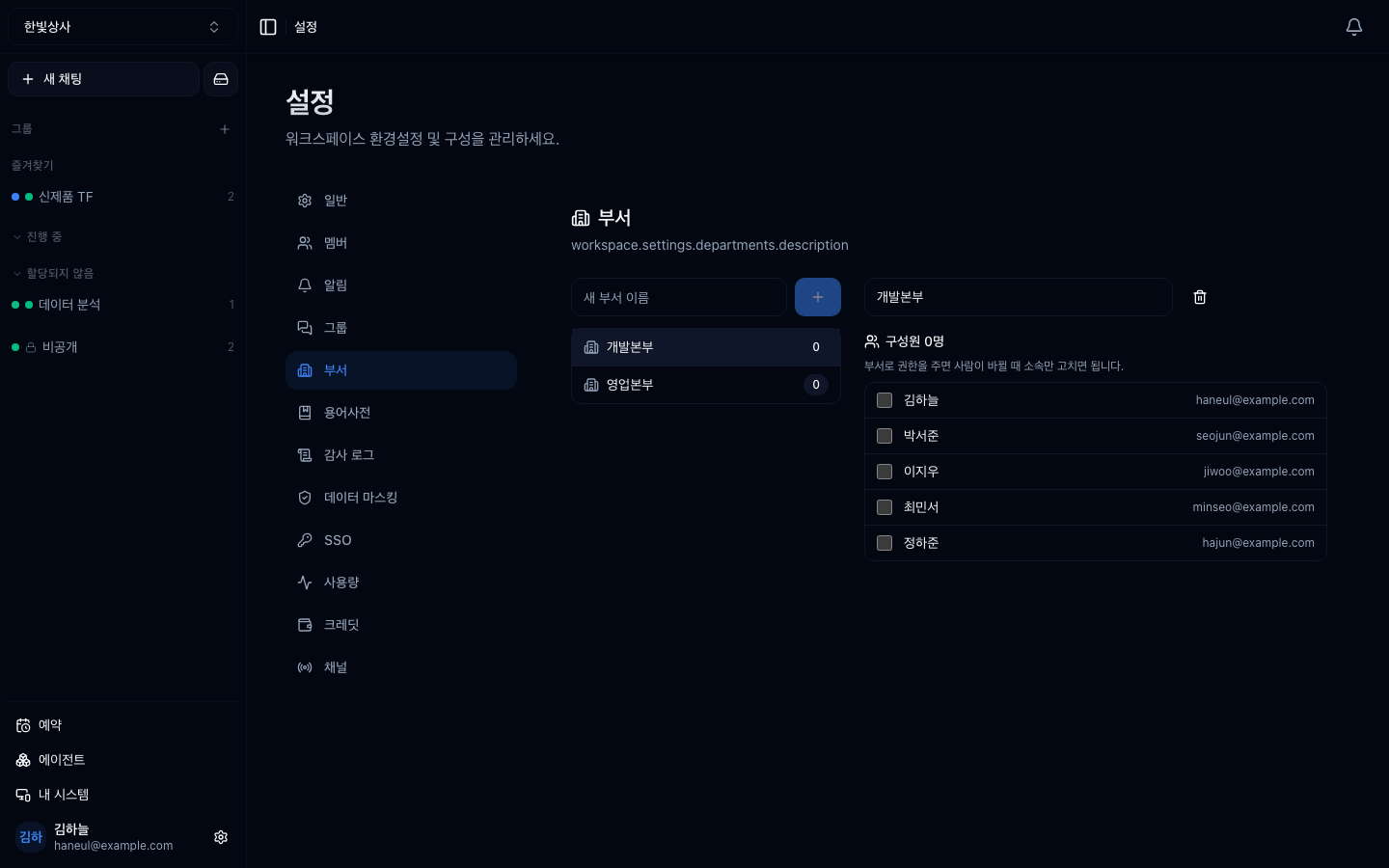
The departments screen. Mirror your org chart here and a staff move is just a change of membership.
## Departments — grouping people by the org chart
Build it to match your actual org chart.
```
Company
├─ Sales Division
│ ├─ Sales Team 1
│ └─ Sales Team 2
└─ Engineering Division
└─ Platform Team
```
**When to use it**: when default permissions follow organisational structure.
When someone transfers, you change only their department.
## Thread groups — grouping conversations by topic
**Drawers that hold conversations by topic or project**, so your sidebar does not
scatter. Each group can have a colour and an order.
```
New Product TF ← conversations about this project
Security Review ← security-related conversations
Data Analysis ← analysis requests
```
On top of that you layer **who can see it.**
| Visibility | Meaning |
|---|---|
| **Public to all** (default) | any workspace member sees this group's conversations |
| **Selected members only** | only designated **departments** or **individuals** |
> **Under "selected members only," designate departments rather than
> individuals.** Designate individuals and every departure or transfer means
> editing groups one by one, and when that slips, **someone who left keeps
> seeing them.** Designate departments and changing their membership carries
> everything with it.
Thread groups can also carry their own **set of usable agents** — you choose
whether to inherit the workspace setting or differ for this group.
## Grant permissions to departments, not people
This is the core of the chapter.
```
✗ CRM tool permission for Kim
CRM tool permission for Lee
CRM tool permission for Park
... (one at a time)
✓ CRM tool permission for the Sales Division
→ adding a person to the department is the whole job
```
Thread group visibility works the same way.
```
✗ Add Kim, Lee, Park and Choi to the Security Review group one at a time
✓ Make the Security Review group visible to "Engineering + Legal"
```
**Granting permission to a new joiner becomes one action: "add to department."**
Nothing gets missed.
## How to start
There is no need for complexity at the start.
| Size | Recommendation |
|---|---|
| ~10 | no departments. A few thread groups, public to all |
| 10–30 | **create departments** and set thread group visibility by department |
| 30+ | keep the department structure matched to the org chart and review it |
**Create them when you need them.** Creating them in advance only adds things to
manage.
## The sidebar shows only the groups you joined
If every visible group were in the sidebar, someone joining a workspace with
thirty groups would get thirty rows on day one. So the sidebar draws **joined
groups** only.
| When you are joined automatically |
|---|
| A new group is created **visible to all** → everyone in the workspace at that moment |
| You are **newly granted** access → you |
| You join the workspace later → only the first few fully-visible groups |
For the rest, go in through **browse groups**.
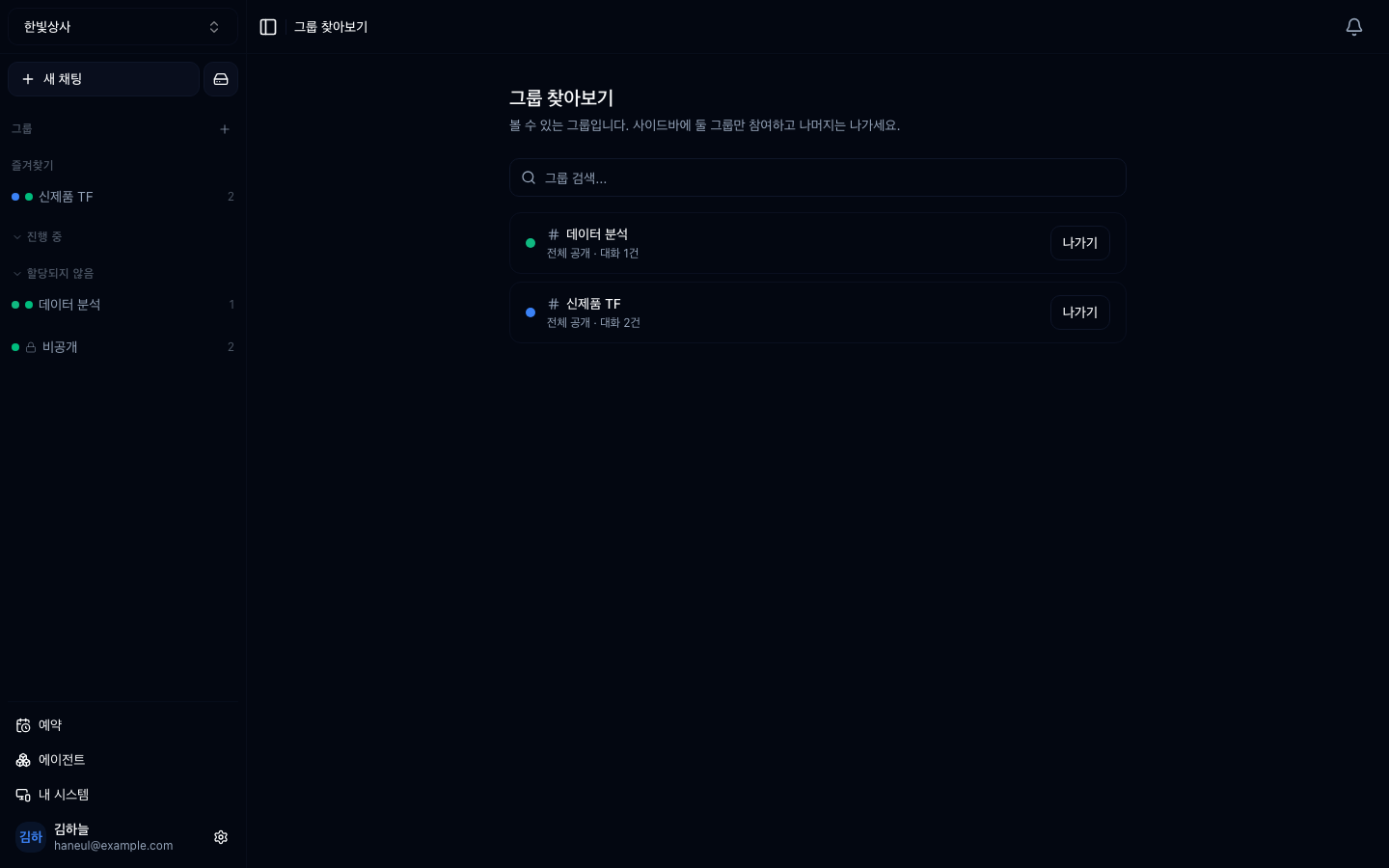
**The list contains only what you may see.** Leaking even the name of a
selectively-visible group is a disclosure, so without access it does not exist as
far as the screen is concerned.
Groups you have already joined are shown too — half the people who open this
screen came to check "am I in that one?". Leaving is also done here.
## Tidying the sidebar — sections, favourites, mute
Sidebars get long as groups accumulate. There are three tools.
| Tool | What it does |
|---|---|
| **Favourite** | Lifts it into a separate group at the top |
| **Section** | Groups entries under a name you choose (e.g. "In progress") |
| **Mute** | Keeps it listed but drops notifications and emphasis |
**All three are personal.** Tidying yours leaves your teammates' sidebars
untouched. Sections can be reordered by dragging and collapsed.
## Practical tips
### Put the purpose in thread group names
```
✗ "Group 1", "Temp", "TF"
✓ "NewProduct-TF-2026H1", "SecurityReview"
```
**You have to be able to recognise a finished group** to tidy up.
### Give temporary groups an end date
When a project ends and the group remains, your sidebar just gets longer. Note
"until when" as you create it.
### Match departments to the real org chart
Invent your own and every transfer causes confusion. **Copying the org chart from
the HR system** is easier to maintain.
## Periodic review
```
□ are there thread groups whose purpose has ended
□ does the department structure match the actual organisation
□ is anyone not in a department
□ are any "selected members only" groups pinned to individuals
```
---
## Check yourself
**1. What do departments and thread groups each group?**
Answer
**Departments group people, thread groups group conversations.** They are not
competing — you layer them. Setting a thread group to "selected members only" and
designating the viewers **by department** is the basic usage.
**2. Why grant permissions to groupings rather than individuals?**
Answer
**Because granting permission to a new joiner becomes one action: "add to the
department."** Start adjusting per person and eventually nobody can describe the
current state, and people who left keep having access.
**3. At ten people, what should you create first?**
Answer
**You do not need departments yet.** A few thread groups, public to all, is
enough; at 10–30 you create departments and move visibility onto them.
---
Now how to see the cost → [Usage and credits](/guide/cn-usage)