# First run and connecting
> **What you will learn**
> The basic start, connect, and stop flow. And how to run it without tying up a
> terminal.
>
> **If `localhost:27777` means nothing to you,** start with [Networks and communication](/guide/it-network).
## Starting
One word, from any folder.
```bash
hyperteams
```
On start it prints the address.
```
HyperTeams is running
Local: http://localhost:27777
Press Ctrl-C to stop
```
## Connecting
Open that address in a browser. Enter the
[password you set during install](/guide/ht-install) and you are in.
**It is empty the first time**, because you have not registered a working
directory yet. That is [the next chapter](/guide/ht-working-directory).
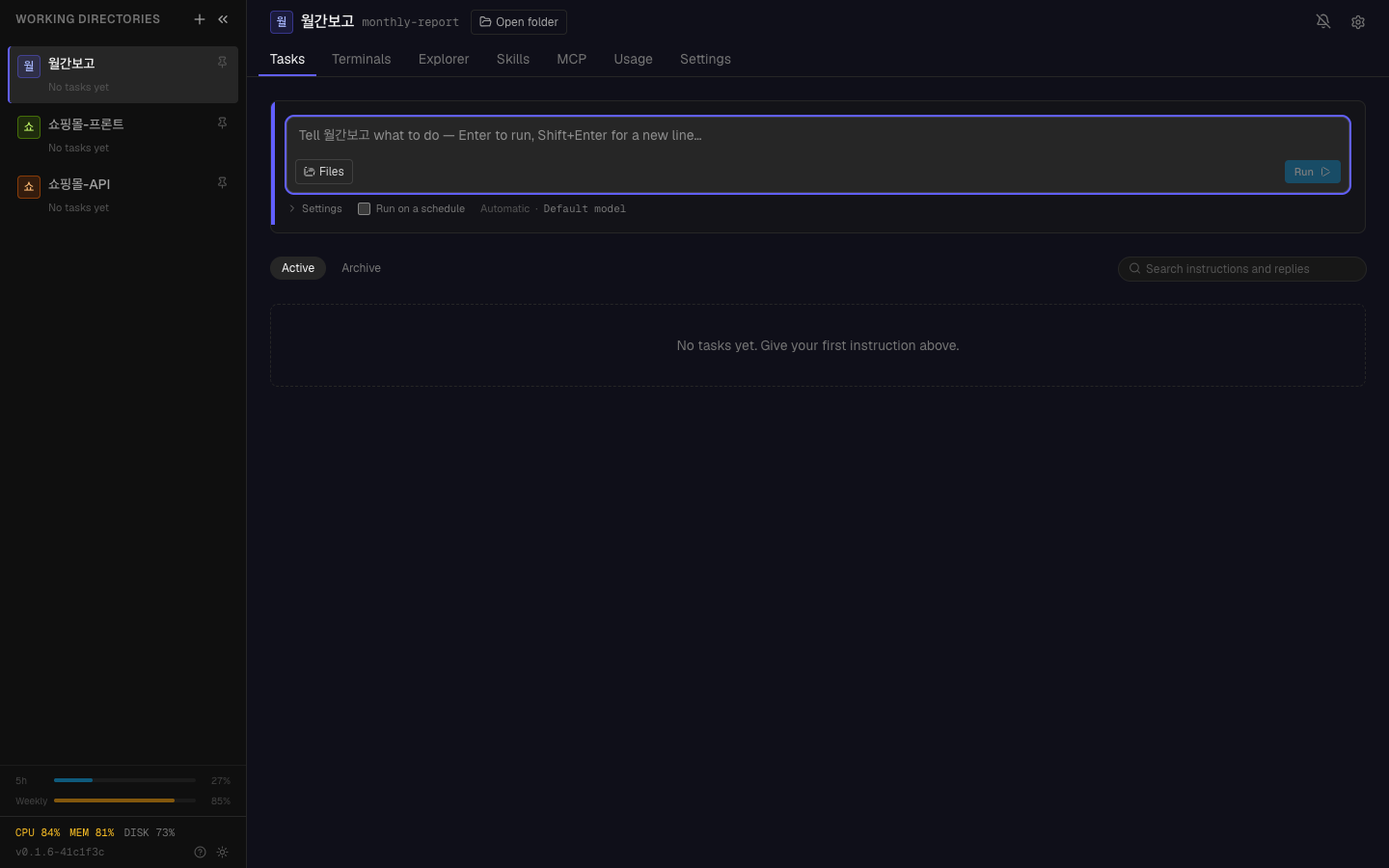
This is what an empty first login looks like. Working directories are on the left, with CPU, memory and disk below.
## Stopping
**Ctrl-C** once in the terminal you started it from cleans everything up.
```
^C
Shutting down...
✓ Stopped
```
## If tying up a terminal is inconvenient
Starting with plain `hyperteams` means **you have to keep that terminal.** Close
the window and it stops with it.
To keep it running after closing the window:
```bash
hyperteams start --background
```
It prints the address and **returns your prompt.** You can use that terminal for
other things, or close it.
### When running in the background
| | How |
|---|---|
| The output that used to scroll | accumulates in `logs/server.log` in the install folder |
| The previous run | kept as one generation in `logs/server.log.prev` |
| Stopping | `hyperteams stop` |
## Starting automatically at boot
Register `hyperteams start --background` **as a system startup item.**
| OS | Method |
|---|---|
| macOS | launchd |
| Linux | systemd |
| Windows | Task Scheduler |
These are each OS's standard mechanism, so there is plenty of material online.
## The three ways to run it
```mermaid
graph TD
A["hyperteams"] --> A1["attached to this terminal
Ctrl-C to stop
closing the window stops it"]
B["hyperteams start --background"] --> B1["terminal is free
hyperteams stop to stop
survives closing the window"]
C["Registered at startup"] --> C1["automatic at boot
nothing to think about"]
```
**Start with plain `hyperteams` at first.** Watching the output lets you confirm
it is working. Move to background once you are comfortable.
## Where people get stuck
### "The address prints but the browser won't open it"
- Check you typed it exactly (including `http://`)
- Another program may be using that port → try `PORT=9000 hyperteams`
### "I don't remember the password"
```bash
hyperteams setup
```
Lets you set it again.
### "It starts and immediately stops"
Check the log.
```bash
cat logs/server.log
```
Usually **Claude Code or Node.js is not ready.** Recheck
[prerequisites](/guide/ht-prerequisites).
---
## Check yourself
**1. What is the difference between `hyperteams` and
`hyperteams start --background`?**
Answer
The first runs **attached to that terminal** and stops when the window closes.
The second returns your prompt and keeps running after you close it. You stop the
second with `hyperteams stop`.
**2. Where do you see the output when running in the background?**
Answer
**`logs/server.log`** in the install folder. The previous run is kept as one
generation in `logs/server.log.prev`.
**3. Why start with plain `hyperteams` at first?**
Answer
**Because watching the output lets you confirm it is working.** Any problem is
immediately visible.
---
Build the knowledge of where to look before you need it. Thirty minutes →
[Check your first connection](/guide/ht-try-first-run)