What you will learn The basic start, connect, and stop flow. And how to run it without tying up a terminal.
If
localhost:27777means nothing to you, start with Networks and communication.
One word, from any folder.
On start it prints the address.
Open that address in a browser. Enter the password you set during install and you are in.
It is empty the first time, because you have not registered a working directory yet. That is the next chapter.
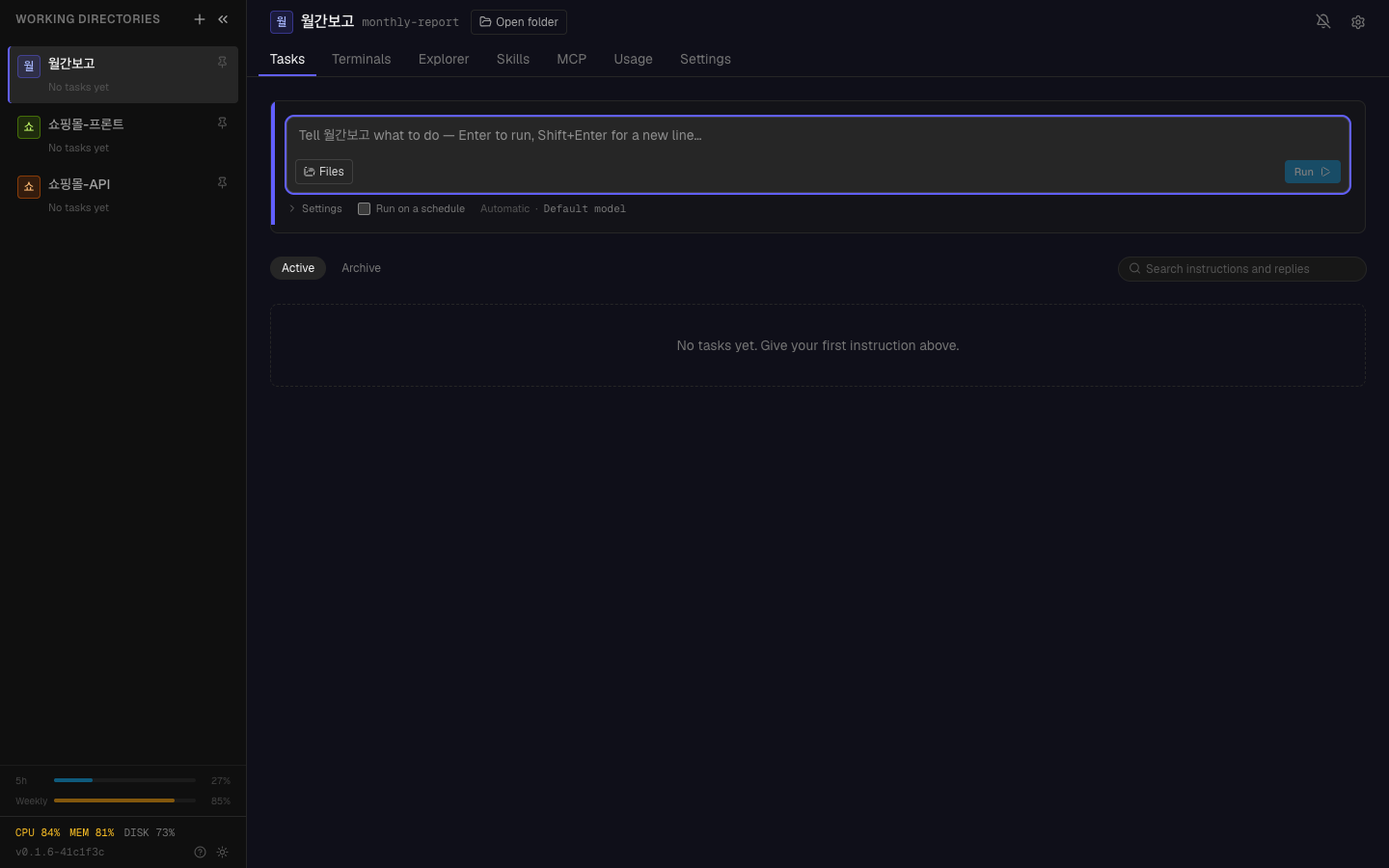
The screen after registering a few folders. The far left is the working directory list (on a wide screen it starts folded into a narrow strip of letter badges — open it with »), with per-engine usage and CPU, memory and disk at the bottom. Next to it is the selected folder's sidebar — four sections: Tasks · Terminals · Explorer · Browser — and the wide area on the right is the workbench, which lays them out side by side as tabs and panes.
Press ⋯ (More) in the sidebar header for Tools · Usage · Folder settings · Global settings. The first three open as workbench tabs; Global settings slides in from the right. Language, run accounts, remote access (tunnel) and updates are in Global settings.
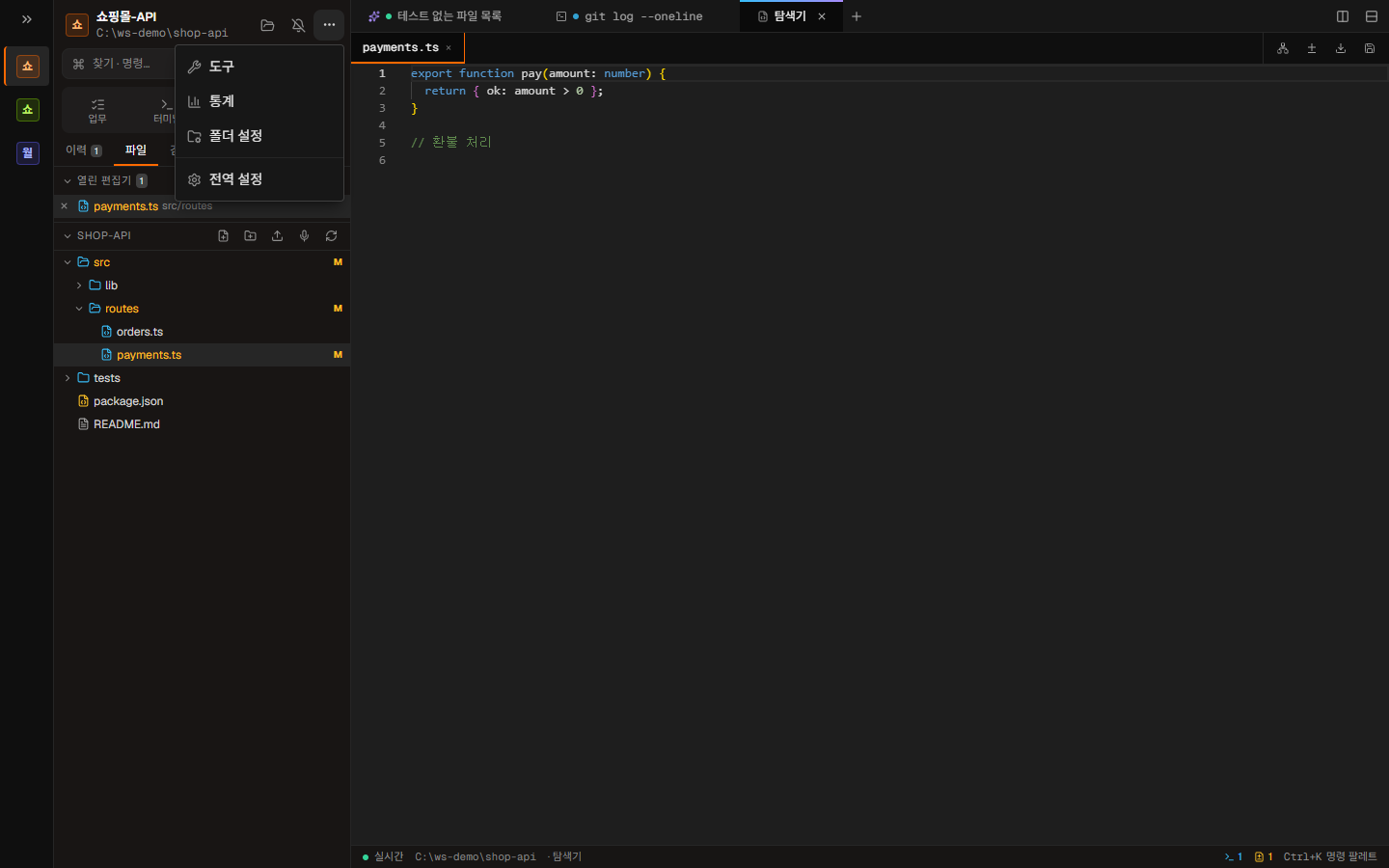
The ⋯ menu in the sidebar header.
The command palette (Ctrl+K, ⌘K on macOS) goes to the same places — type a name like "New task", "Tools" or "Global settings". Ctrl+B (⌘B) folds the sidebar away and back.
Ctrl-C once in the terminal you started it from cleans everything up.
Starting with plain hyperteams means you have to keep that terminal. Close
the window and it stops with it.
To keep it running after closing the window:
It prints the address and returns your prompt. You can use that terminal for other things, or close it.
| How | |
|---|---|
| The output that used to scroll | accumulates in logs/server.log in the install folder |
| The previous run | kept as one generation in logs/server.log.prev |
| Stopping | hyperteams stop |
Register hyperteams start --background as a system startup item.
| OS | Method |
|---|---|
| macOS | launchd |
| Linux | systemd |
| Windows | Task Scheduler |
These are each OS's standard mechanism, so there is plenty of material online.
graph TD
  A["hyperteams"] --> A1["attached to this terminal<br/>Ctrl-C to stop<br/>closing the window stops it"]
  B["hyperteams start --background"] --> B1["terminal is free<br/>hyperteams stop to stop<br/>survives closing the window"]
  C["Registered at startup"] --> C1["automatic at boot<br/>nothing to think about"]
Start with plain hyperteams at first. Watching the output lets you confirm
it is working. Move to background once you are comfortable.
http://)PORT=9000 hyperteamsLets you set it again.
Check the log.
Usually Claude Code or Node.js is not ready. Recheck prerequisites.
1. What is the difference between hyperteams and
hyperteams start --background?
The first runs attached to that terminal and stops when the window closes.
The second returns your prompt and keeps running after you close it. You stop the
second with hyperteams stop.
2. Where do you see the output when running in the background?
logs/server.log in the install folder. The previous run is kept as one
generation in logs/server.log.prev.
3. Why start with plain hyperteams at first?
Because watching the output lets you confirm it is working. Any problem is immediately visible.
Build the knowledge of where to look before you need it. Thirty minutes → Check your first connection
hyperteamsHyperTeams is running Local: http://localhost:27777Press Ctrl-C to stop^CShutting down...✓ Stoppedhyperteams start --backgroundhyperteams setupcat logs/server.log HyperTeams