What you will learn Actually creating an account and opening a workspace. Follow along with the screens.
Start at the sign-up screen.
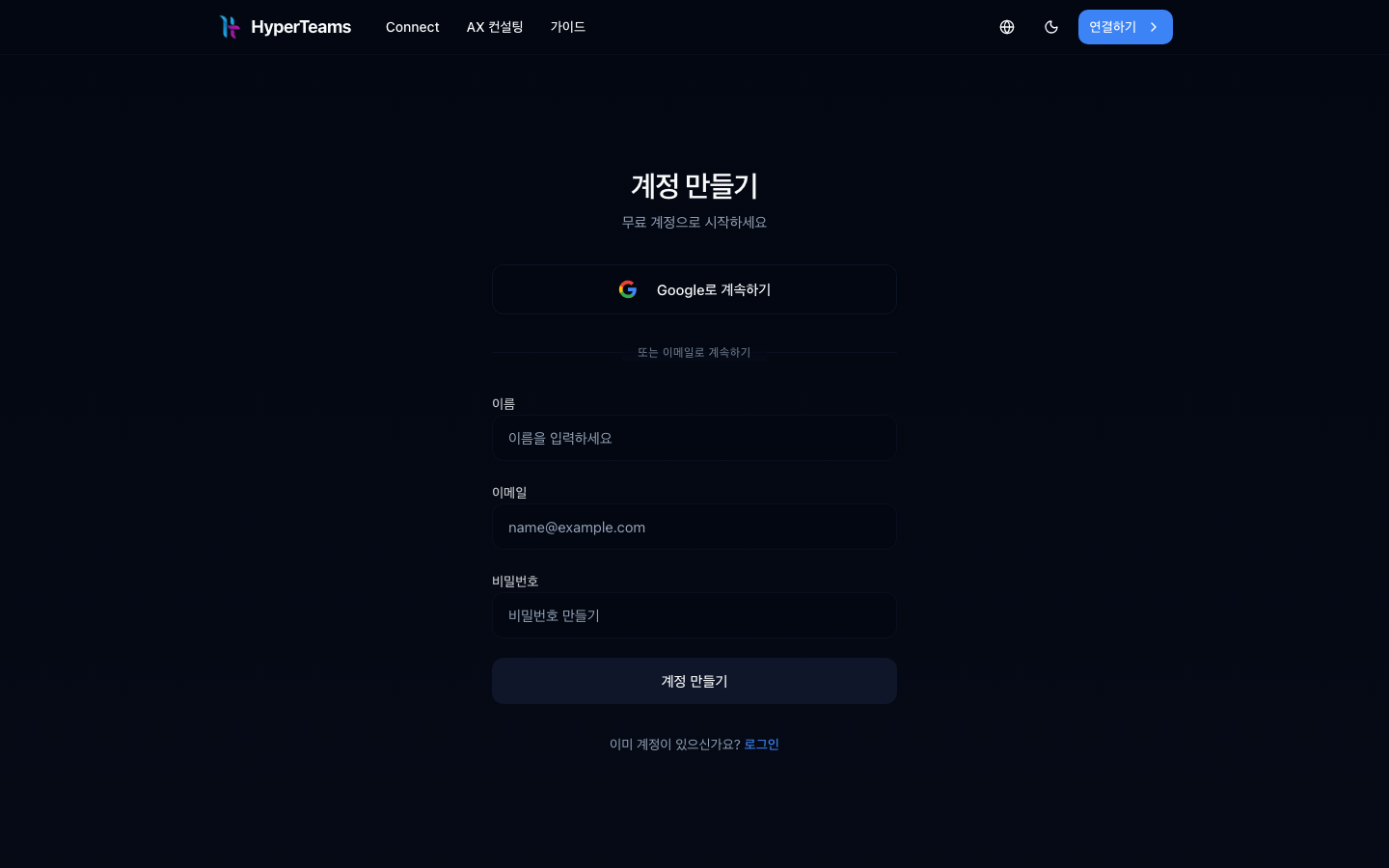
Two ways.
| Method | Character |
|---|---|
| Continue with Google | fastest. No verification email |
| Sign up with email | name, email, password, then confirm the verification email |
One verification email is sent. You have to click that link to complete the login.
If you already have an account, go to log in.
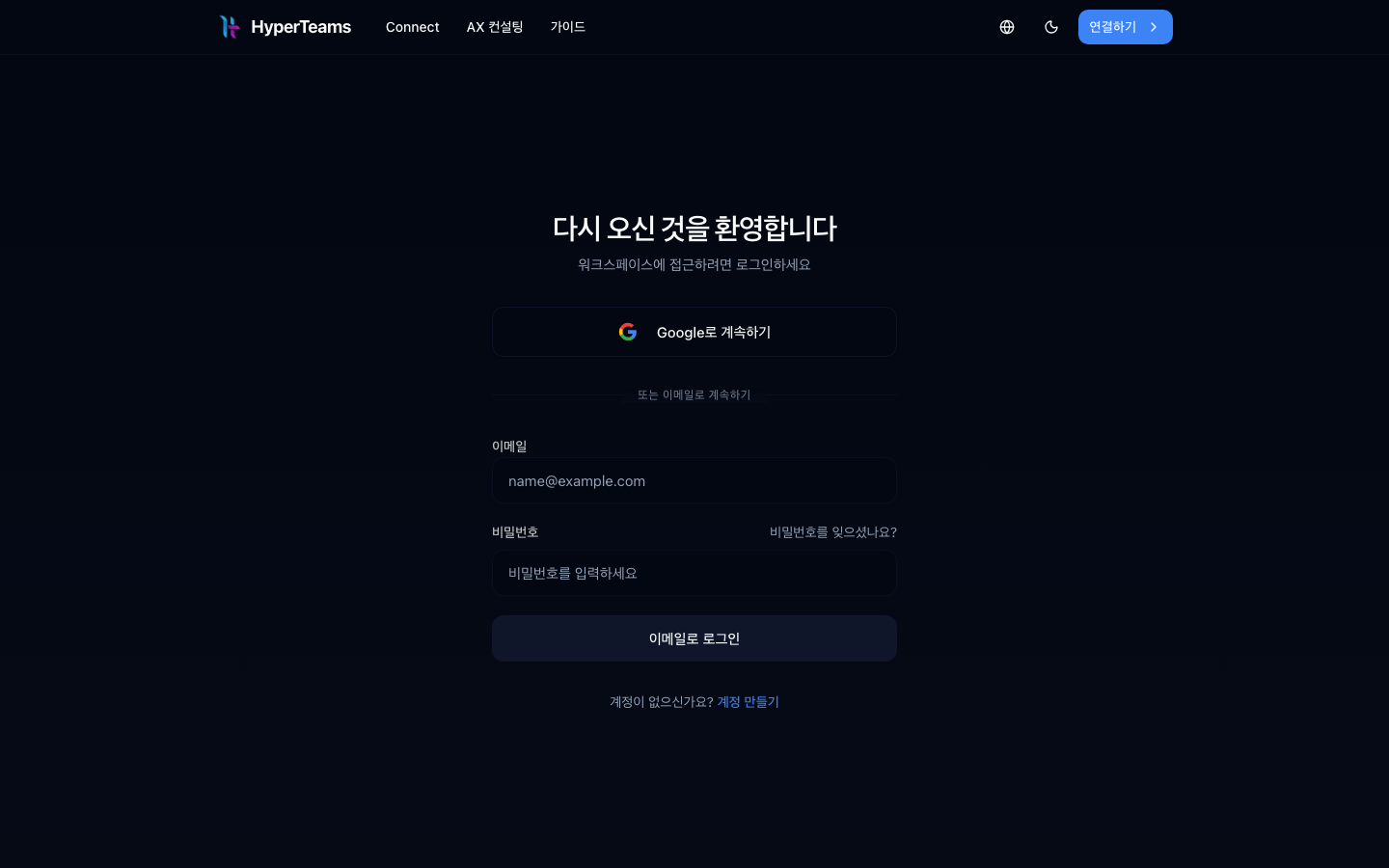
After logging in you get a screen to pick a workspace or create one.
Two things to decide.
| Item | Description |
|---|---|
| Name | the display name |
| Handle | the short name that becomes the address. Lowercase letters |
Changing the handle later breaks links you shared. Choose carefully, as covered in workspaces.
You do not need several from the start. Start with one and add when needed.
Entering a workspace drops you straight into a chat box. The menu is on the left.
| Menu | What |
|---|---|
| New work | start a new thread; the ▾ beside it is add groups (new group · new section · browse groups) |
| Drive | the workspace file store (icon at the right of the New work row) |
| (conversation list) | your threads so far, filed under groups; the rest sit under My work |
| Agents | things that run without you → agents |
| Tools | manage sub-agents and tools |
| System management | register your machine (admins only) |
| Settings | members, tools, usage, credits (gear at the right of the account row) |
Notifications are not in settings — they live inside the 🔔 in the header. Worth knowing up front, because people look for them → Getting notifications
It is empty at first. Start a conversation and the left-hand list fills up.
If it is not just for you, invite members.
Invite by email under Settings → Members. Details in members and roles.
You can go straight to your first conversation, or if you want the concepts first, start at what Connect is.
Invite links expire. If it has, ask the person who invited you to send another.
The current workspace name is shown at the top left. Click it to switch.
1. What extra step does email sign-up require?
Clicking the link in the verification email to complete the login. Google login does not have this step.
2. Why choose the handle carefully?
The handle is the address (/w/<handle>), so changing it later breaks every
link you shared with the team.
3. Should you create several workspaces from the start?
No. Start with one and add when needed. Splitting is easier than merging.
Now your first conversation → Your first conversation
□ if it did not arrive, check spam□ on a work address, check the external-mail blocking policyName: SalesHandle: salesAddress: /w/sales□ check spam□ check the corporate mail policy (external mail blocked)□ work around it with Google login HyperTeams