이 장에서 배우는 것 그룹과 부서가 각각 무엇을 묶는지, 둘을 어떻게 겹쳐 쓰는지, 그리고 왜 개인 단위 권한 관리가 무너지는지.
이름이 헷갈립니다. 여기부터 보세요. 대화 그룹은 대화를 묶습니다. 사람을 묶는 게 아닙니다. 부서는 사람을 묶습니다. 그래서 "이 대화 그룹은 영업본부만 볼 수 있다" 처럼 둘을 겹쳐서 씁니다.
멤버가 5명일 때는 개인마다 설정해도 됩니다. 30명이 되면 이렇게 됩니다.
아무도 현재 상태를 설명하지 못하는 지점이 옵니다. 그래서 묶음이 필요합니다.
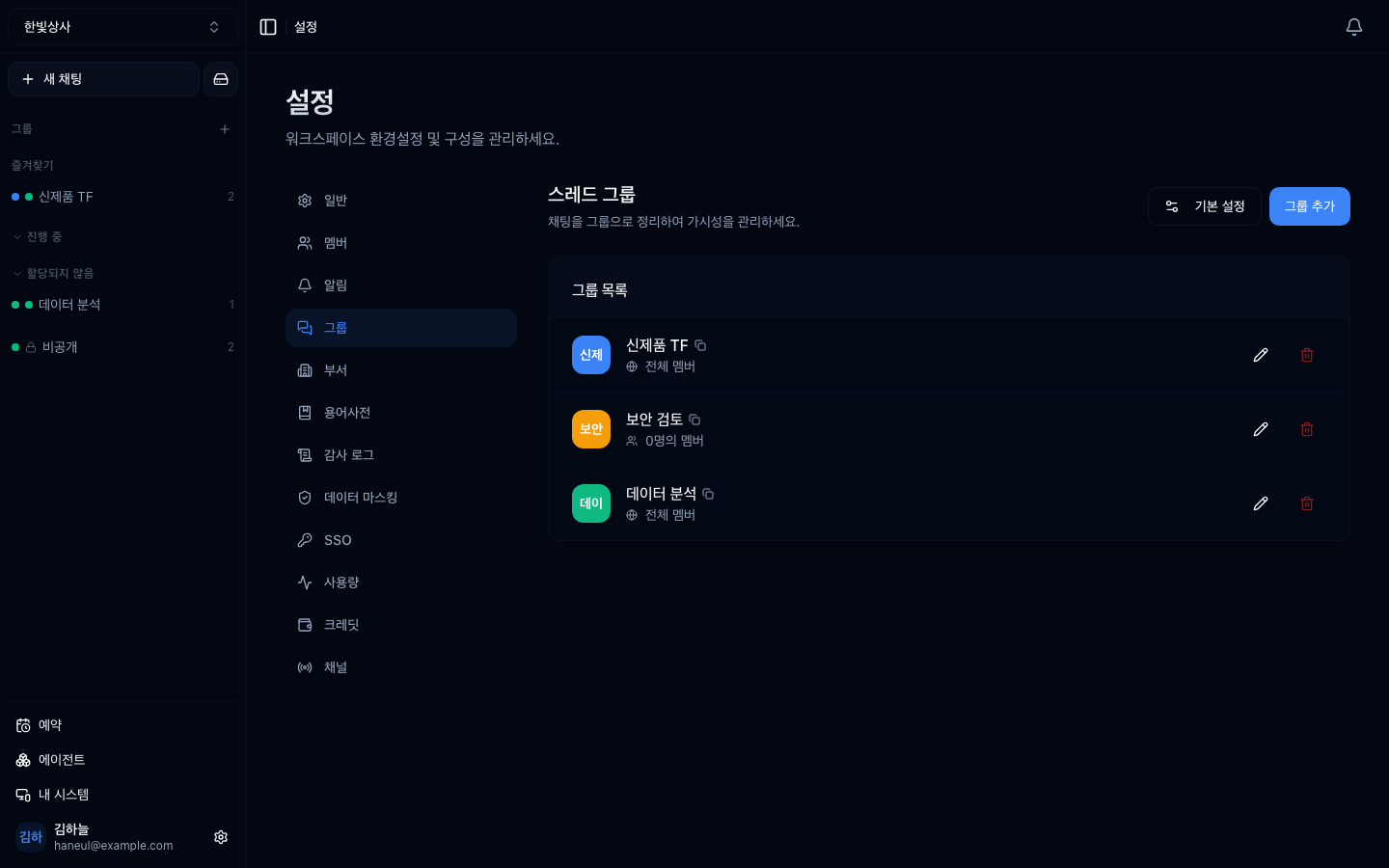
그룹마다 색을 줄 수 있어 사이드바에서 한눈에 구분됩니다. 화면 설명이 "채팅을 그룹으로 정리"라고 말하는 것에 주목하세요 — 사람이 아니라 채팅입니다.
graph TD
  W["워크스페이스"] --> D["부서<br/>사람을 묶는다"]
  W --> G["대화 그룹<br/>대화를 묶는다"]
  D --> M["멤버 · 멤버 · 멤버"]
  G --> T["대화 · 대화 · 대화"]
D -.->|"이 부서만 볼 수 있음"| G| 부서 | 대화 그룹 | |
|---|---|---|
| 무엇을 묶나 | 사람 | 대화(스레드) |
| 기준 | 조직도 | 주제·프로젝트 |
| 예 | 영업1팀, 개발팀 | 신제품TF, 보안검토 |
| 공개 범위 | — | 전체 공개 또는 지정한 부서·사람만 |
| 만들 수 있는 사람 | owner · admin | owner · admin |
점선이 핵심입니다. 대화 그룹을 "선택된 멤버만" 으로 두면, 볼 사람을 부서 단위로 지정할 수 있습니다.
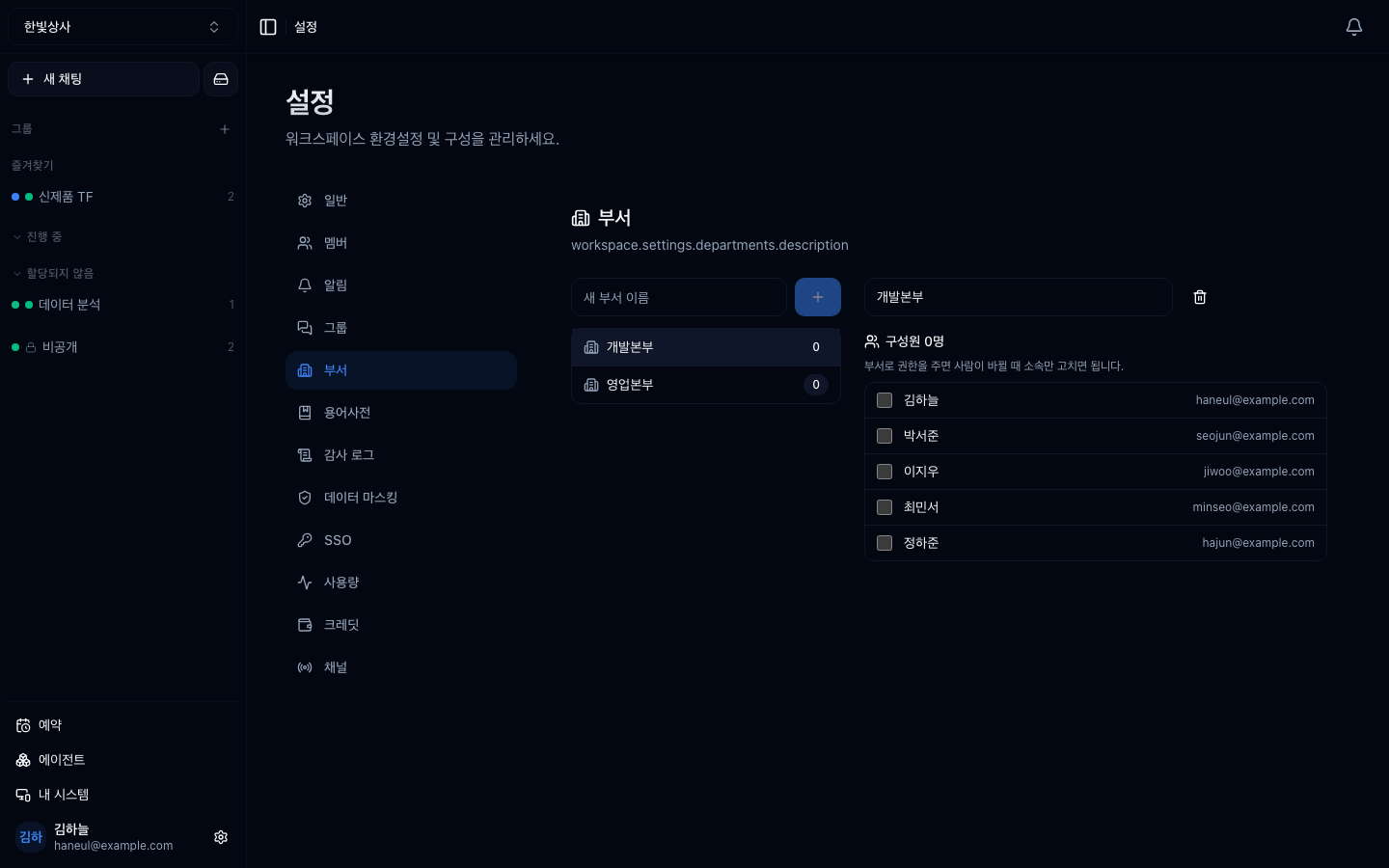
부서 화면입니다. 조직도를 그대로 옮겨두면 인사 이동 때 소속만 고치면 됩니다.
실제 조직도와 같게 만듭니다.
언제 쓰나: 조직 구조에 따라 기본 권한이 정해질 때. 인사 이동이 있으면 부서만 바꾸면 됩니다.
사이드바에서 대화가 흩어지지 않게 주제·프로젝트 단위로 담는 서랍입니다. 그룹마다 색을 줄 수 있고, 순서를 정할 수 있습니다.
여기에 누가 볼 수 있는지를 얹습니다.
| 공개 범위 | 뜻 |
|---|---|
| 전체 공개 (기본) | 워크스페이스 멤버 누구나 이 그룹의 대화를 봄 |
| 선택된 멤버만 | 지정한 부서 또는 개인만 봄 |
"선택된 멤버만"에서 개인이 아니라 부서를 지정하세요. 개인으로 지정하면 퇴사·이동 때마다 그룹을 하나씩 고쳐야 하고, 그게 밀리면 나간 사람이 계속 봅니다. 부서로 지정하면 소속만 고치면 전부 따라옵니다.
대화 그룹에는 쓸 수 있는 에이전트도 따로 정할 수 있습니다 — 워크스페이스 설정을 물려받을지, 이 그룹만 다르게 할지 고릅니다.
이게 이 장의 핵심입니다.
대화 그룹의 공개 범위도 똑같습니다.
새로 온 사람에게 권한을 주는 일이 "부서에 넣기" 하나가 됩니다. 빠뜨릴 일도 없습니다.
처음부터 복잡하게 만들 필요는 없습니다.
| 규모 | 권장 |
|---|---|
| ~10명 | 부서 없이. 대화 그룹만 전체 공개로 몇 개 |
| 10~30명 | 부서를 만들고, 대화 그룹 공개 범위를 부서로 지정 |
| 30명+ | 부서 구조를 조직도와 맞추고 정기 점검 |
필요해질 때 만드세요. 미리 만들어두면 관리 대상만 늘어납니다.
볼 수 있는 그룹이 전부 사이드바에 있으면, 그룹이 서른 개인 워크스페이스에 들어온 사람은 첫날부터 서른 줄을 받습니다. 그래서 사이드바는 참여한 그룹만 그립니다.
| 언제 자동으로 들어가나 |
|---|
| 새 그룹이 전체 공개로 생기면 → 그 시점의 워크스페이스 전원 |
| 권한을 새로 받으면 → 그 사람 |
| 나중에 합류한 사람 → 전체 공개 그룹 중 앞의 몇 개만 |
나머지는 그룹 찾아보기에서 직접 들어갑니다.
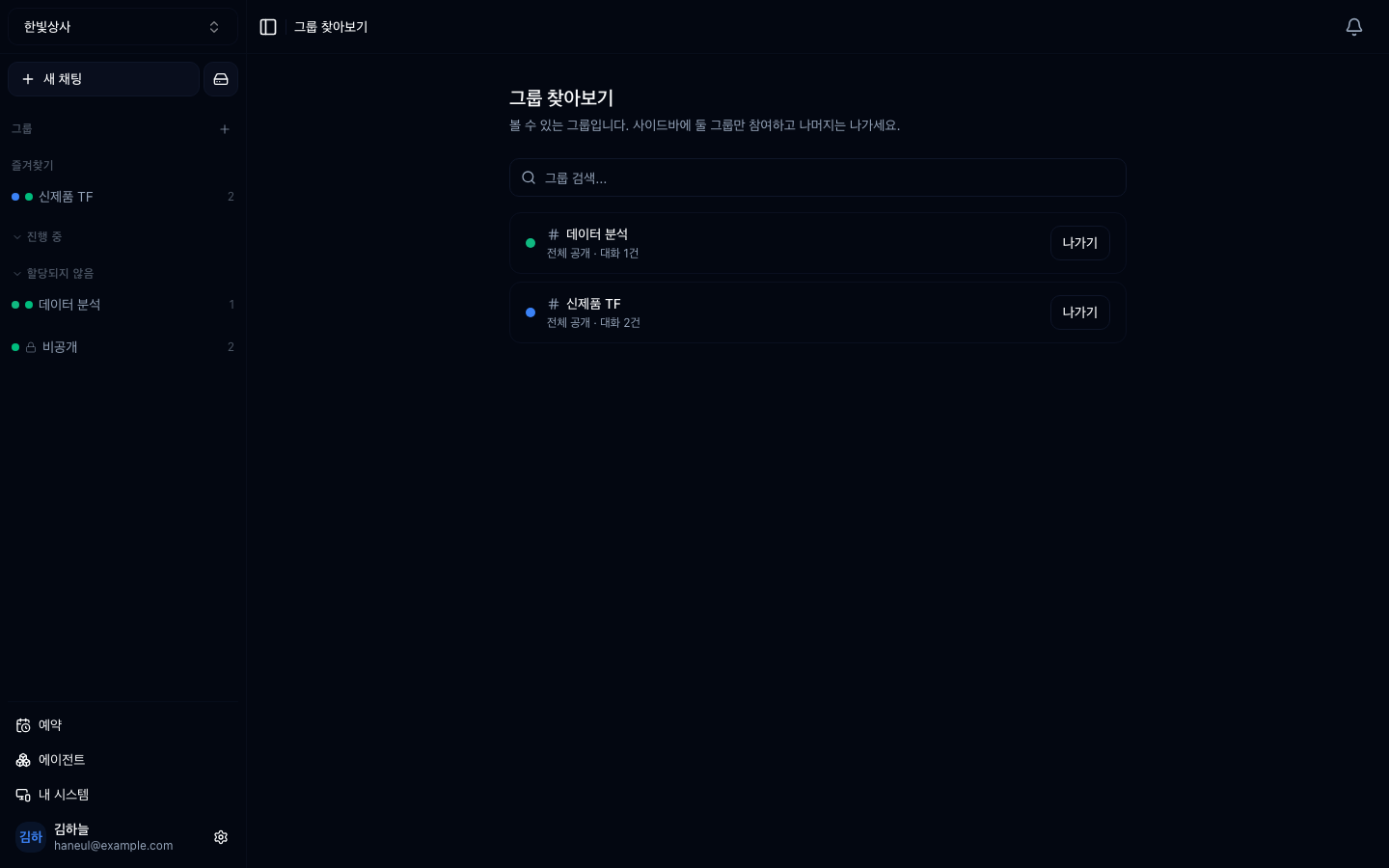
목록에는 볼 권한이 있는 것만 담깁니다. 선택 공개 그룹은 이름만 흘려도 유출이라, 권한이 없으면 존재 자체가 보이지 않습니다.
참여 중인 그룹도 함께 보여 줍니다 — 이 화면에 오는 사람의 절반은 "내가 저기 들어가 있었나"를 확인하러 옵니다. 나가기도 여기서 됩니다.
그룹이 늘면 사이드바가 길어집니다. 정리 장치가 셋입니다.
| 장치 | 무엇 |
|---|---|
| 즐겨찾기 | 맨 위 별도 묶음으로 올립니다 |
| 섹션 | 내가 만든 이름으로 그룹을 묶습니다 (예: "진행 중") |
| 음소거 | 목록에는 두되 알림과 강조를 끕니다 |
셋 다 개인 설정입니다. 내가 정리해도 팀원의 사이드바는 그대로입니다. 섹션은 드래그로 순서를 바꿀 수 있고 접어 둘 수 있습니다.
끝난 그룹을 알아볼 수 있어야 정리가 됩니다.
프로젝트가 끝났는데 그룹이 남으면 사이드바만 길어집니다. 만들 때 "언제까지"를 함께 적어두세요.
임의로 만들면 인사 이동 때마다 헷갈립니다. 인사 시스템의 조직도를 그대로 옮기는 게 관리가 쉽습니다.
1. 부서와 대화 그룹은 각각 무엇을 묶습니까?
부서는 사람을, 대화 그룹은 대화를 묶습니다. 둘은 경쟁 관계가 아니라 겹쳐 씁니다 — 대화 그룹을 "선택된 멤버만"으로 두고 볼 사람을 부서로 지정하는 것이 기본 사용법입니다.
2. 권한을 개인이 아니라 묶음에 줘야 하는 이유는?
새로 온 사람에게 권한을 주는 일이 "부서에 넣기" 하나가 되기 때문입니다. 개인마다 손대기 시작하면 나중에 아무도 현재 상태를 설명하지 못하고, 나간 사람이 계속 보는 상태가 남습니다.
3. 10명 규모라면 무엇부터 만들어야 합니까?
부서는 아직 안 만들어도 됩니다. 대화 그룹 몇 개를 전체 공개로 두는 것으로 충분하고, 10~30명이 되면 부서부터 만들어 공개 범위를 부서로 옮깁니다.
비용을 보는 법입니다 → 사용량과 크레딧
"김대리는 왜 이 도구를 못 쓰죠?""음... 누가 언제 바꿨는지 모르겠네요"회사 ├─ 영업본부 │ ├─ 영업1팀 │ └─ 영업2팀 └─ 개발본부 └─ 플랫폼팀신제품TF ← 이 프로젝트에 관한 대화들보안검토 ← 보안 관련 대화들데이터분석 ← 분석 요청 대화들✗ 김대리에게 CRM 도구 권한 이대리에게 CRM 도구 권한 박과장에게 CRM 도구 권한 ... (한 명씩)✓ 영업본부에 CRM 도구 권한 → 사람은 부서에 넣으면 끝✗ 보안검토 그룹에 김·이·박·최를 한 명씩 추가✓ 보안검토 그룹을 "개발본부 + 법무팀" 에 공개✗ "그룹1", "임시", "TF"✓ "신제품TF-2026상반기", "보안검토"□ 목적이 끝난 대화 그룹이 남아 있나□ 부서 구조가 실제 조직과 맞나□ 부서에 안 속한 사람이 있나□ "선택된 멤버만" 그룹에 개인으로 박아둔 사람이 있나 HyperTeams