What you will learn Why per-workspace tool settings exist, and how to decide what to enable and what to disable.
Because of the two problems from when you have too many tools.
| Problem | Result |
|---|---|
| Tool definitions occupy context | higher cost, less room to work |
| Several similar tools | it picks the wrong one |
The second hurts more in practice. Turning off unused tools is both a saving and an accuracy improvement.
Under Settings → Channel settings → MCP you choose which tools this workspace enables. You can also see the state through the filters on the agent list screen.
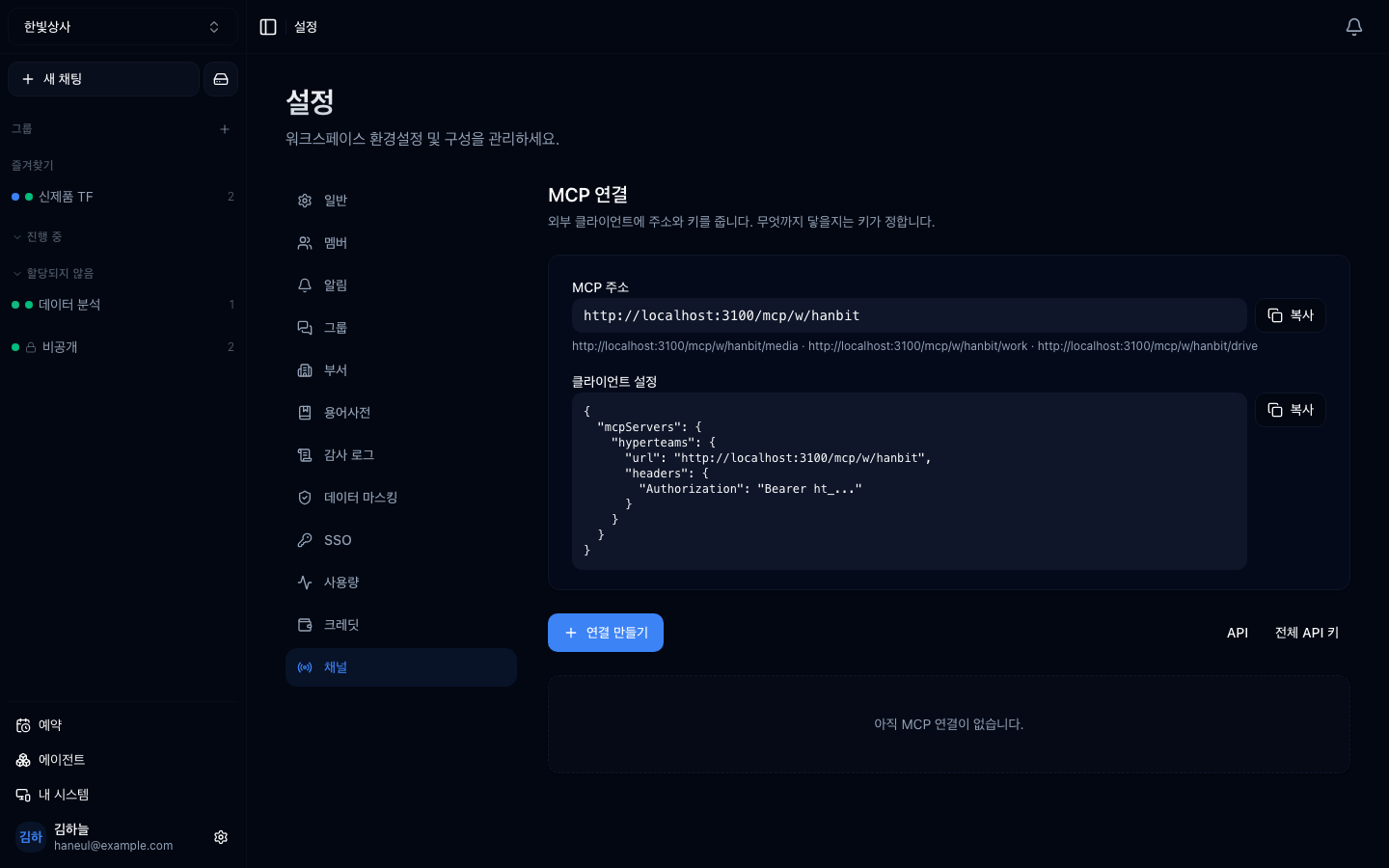
The list of tools you can enable. Disabled tools are never passed to the model.
"We might need it someday" goes in the off column. Turn it on when you actually need it.
From the tools are permissions perspective, enabled means usable.
Five search tools and the model gets confused. Enable only the one that fits best.
Beyond what you attach via MCP, Connect provides some tools by default.
| Tool | What |
|---|---|
| Web | search, fetch a URL, YouTube content |
| Drive | read and write workspace files |
| Webview | open and display a screen |
| System work folder | hand work to a folder on a registered machine |
| Thread notes | jot down what it learned; re-attached automatically on later turns |
| Delegation | hand work to another agent |
Enable and disable these by the same criteria.
| Enabled tools | State |
|---|---|
| ~10 | no problem |
| 10–30 | fine if names and descriptions are good |
| 30+ | tidying is advised |
Connect has a mechanism that narrows to tools close to the request, but it only engages above 100 tools. Below that, everything enabled is passed through, so turning things off is your only control.
When a tool returns something large, it is not handed to the model whole. Otherwise one result eats the whole conversation. There are two stages.
| Threshold | results over 10,000 characters |
| Method | only the first 2,000 characters stay in the conversation; the full text is kept |
| Re-reading | the model asks for a range and reads the original again |
It is not cut and thrown away. If the model needs the tail, it fetches it on the spot. The result also stays on screen in full, so you can read all of it.
Storage has a ceiling too (256KB). Past that the tail really is gone, and the model is told the text stops there.
Before the stage above, a tool result that is enormous to begin with really is cut.
| Threshold | about 30% of the model's context (400,000 characters at most) |
| Method | mostly the head; if the tail holds errors or totals, head + tail |
| Indication | a warning is inserted at the cut |
If you feel you only saw part of a result, this is why. The fix is on the tool side.
If you build a tool yourself, always include range and count arguments. Without them it becomes a tool you cannot use on large data.
Turning tools on and off affects the whole team.
Check about once a quarter:
The third is common. The token expired and it is failing, and nobody knows.
1. Why is turning off unused tools an accuracy improvement?
Because fewer candidates lower the chance of picking wrong. Several similar tools confuse the model. It is both a cost saving and a selection-accuracy improvement.
2. What do you do with a tool you "might need someday"?
Turn it off. Turn it on when you need it. Enabled means usable, and it only adds to the candidate set.
3. What is most commonly found in the quarterly check?
Connections whose credentials expired. The token expired and it is failing, and nobody knows.
Now connect your machine → Connecting a system
Sales workspace: ✓ CRM lookup, quoting system, email ✗ GitHub, deployment tools, code searchRead tools → enable (safe)Write tools → only the ones you needDelete · payment → reconsider whether you really need them✗ "fetch the whole log" → truncated✓ "fetch only the errors" → small to begin with✓ "fetch it 1000 lines at a time" → if the tool accepts ranges□ Turning one off: people using it suddenly cannot → tell them in advance□ Turning one on: nobody knows means nobody uses it → announce it with an example□ which tools have gone unused for three months?□ are there tools left from a finished project?□ are there connections whose credentials expired? HyperTeams