이 장에서 배우는 것 시스템이 무엇인지, 등록 두 단계, 토큰 다루는 법, 그리고 무료와 유료의 경계.
Connect는 클라우드에 있고, 실제 작업이 내 컴퓨터의 파일에서 일어나야 할 때가 있습니다. 시스템은 그 사이를 잇는 등록 단위입니다.
시스템 하나가 컴퓨터 한 대입니다.
graph TD
  U["팀원 · 브라우저"] --> C["Connect<br/>클라우드"]
  C --> S["시스템<br/>등록된 컴퓨터 한 대"]
  S --> H["HyperTeams<br/>그 컴퓨터에서 실행 중"]
  H --> F["실제 프로젝트 폴더"]
HyperTeams 트랙이 그 컴퓨터 쪽 이야기라면, 이 장은 Connect 쪽에서 그 컴퓨터를 등록하는 이야기입니다.
워크스페이스 메뉴의 내 시스템으로 들어가면 두 단계가 안내됩니다.
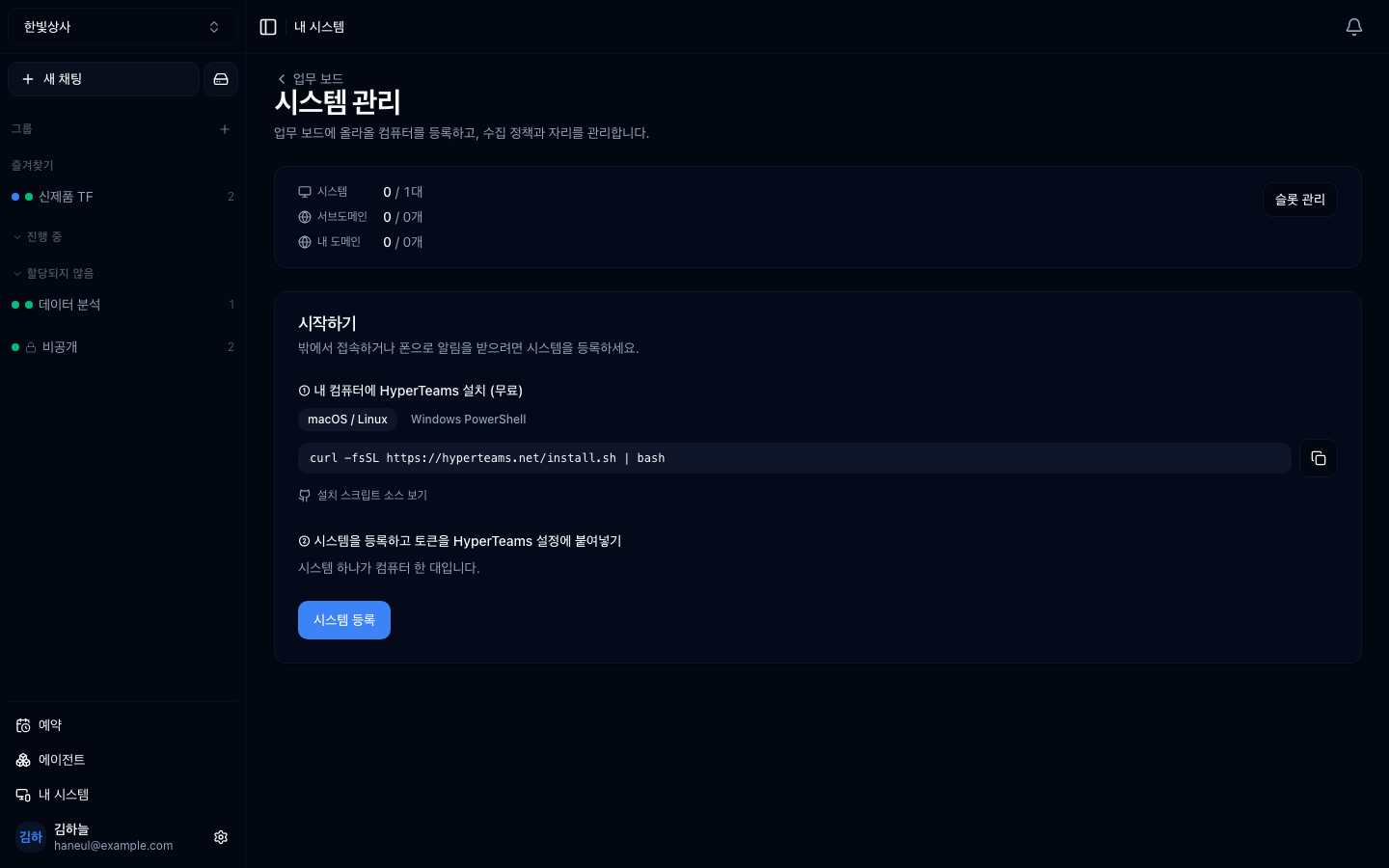
화면의 명령을 연결할 컴퓨터에서 실행합니다.
Windows PowerShell 탭도 따로 있습니다. 자세한 것은 설치하기에 있습니다.
이 단계는 워크스페이스 owner만 할 수 있습니다. admin으로 들어가면 시스템 목록은 보이지만 시스템 등록 버튼이 없습니다. 역할표를 보세요.
시스템 등록을 누르면 이 워크스페이스에 시스템 행이 생기고 토큰이 발급됩니다. 그 토큰을 컴퓨터 쪽 하이퍼팀즈(HyperTeams) 설정에 붙여넣으면 연결됩니다.
tt_로 시작하는 이 토큰 하나가 그 컴퓨터에 대한 접근 권한입니다.
노출됐다면 시스템을 지우고 다시 등록하는 게 가장 빠릅니다. 새 토큰이 발급되고 옛 토큰은 무효가 됩니다.
등록된 컴퓨터와 자리(슬롯) 현황이 함께 보입니다. 0 / 1대는 쓸 수 있는 자리
대비 사용 중인 수이고, 그 옆이 서브도메인 현황입니다.
| 화면 | 무엇을 보나 |
|---|---|
| 시스템 목록 | 등록된 컴퓨터와 온라인 여부 |
| 작업 | 그 컴퓨터에 내린 업무와 진행 상황 |
| 사용량 | 컴퓨터별 사용량 |
| 태그 | 여러 대를 묶어 관리 |
| 도메인 · 슬롯 | 외부 주소 연결 (유료 부가 기능) |
여기가 자주 헷갈립니다.
| 상태 | |
|---|---|
| 시스템 등록 | 무료 |
| 등록한 컴퓨터에 업무 맡기기 | 무료 |
| 진행 상황·사용량 보기 | 무료 |
| Cloudflare 터널 | 유료 부가 기능 |
터널은 그 시스템을 바깥 인터넷 주소로 노출하는 것입니다. 결제하지 않아도 위의 기본 기능은 그대로 동작합니다.
폐쇄망(onprem) 설치본에서는 터널이 아예 꺼져 있습니다. 외부로 나가는 통로를 만드는 것이 폐쇄망의 전제를 깨기 때문입니다.
작업 폴더가 곧 활동 범위라고 했습니다. 시스템을 워크스페이스에 등록하면 그 범위가 팀에 열립니다.
세 번째를 꼭 확인하세요. 시스템을 등록하는 순간 그 워크스페이스 멤버가 그 컴퓨터에 작업을 시킬 수 있습니다.
시스템이 여러 대가 되면 태그로 묶습니다.
태그로 묶으면 "빌드 태그의 시스템 중 하나"에 일을 맡기는 식이 가능합니다.
1. 시스템 토큰을 어떻게 다뤄야 합니까?
비밀번호처럼 다룹니다. tt_ 토큰 하나가 그 컴퓨터에 대한 접근 권한이므로
채팅방·이슈·스크린샷에 남기면 안 됩니다. 노출됐다면 시스템을 지우고 다시 등록하는
게 가장 빠릅니다.
2. 시스템 등록과 터널 중 무엇이 유료입니까?
터널이 유료 부가 기능입니다. 시스템 등록과 업무 맡기기, 사용량 보기는 무료입니다. 폐쇄망 설치본에서는 터널이 아예 꺼져 있습니다.
3. 시스템을 등록하기 전에 반드시 확인할 것은?
그 컴퓨터의 작업 폴더 범위입니다. 등록하는 순간 워크스페이스 멤버가 그 범위에 작업을 시킬 수 있으므로, 개인 파일이 포함된 폴더가 등록돼 있지 않은지 봐야 합니다.
등록한 뒤의 화면들을 봅니다 → 시스템 관리 — 자리와 주소
curl -fsSL https://hyperteams.net/install.sh | bash✗ 채팅방에 붙여넣기✗ 이슈나 문서에 남기기✗ 스크린샷에 포함시키기✓ 그 컴퓨터의 설정 화면에만□ 그 컴퓨터의 작업 폴더가 좁게 잡혀 있나□ 개인 파일이 있는 폴더가 등록돼 있지 않나□ 이 워크스페이스의 멤버가 그 범위를 봐도 되나빌드서버-1 [빌드]빌드서버-2 [빌드]개발PC-김 [개발] HyperTeams